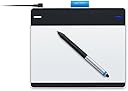
🎨 Elevate your creativity—ditch the mouse, embrace the pen!
The Wacom Intuos Pen and Touch Small Tablet (Old Version) is a compact, versatile graphics tablet featuring a battery-free pen with 1024 pressure sensitivity levels, a 6 x 3.7 inch active drawing area, and four customizable ExpressKeys. Compatible with Mac and PC, it includes downloadable creative software (Autodesk Sketchbook Express & ArtRage Studio) and supports multi-touch gestures for intuitive navigation. Ideal for beginners and professionals alike, it transforms your workspace into a digital art studio or precise input device.
| ASIN | B00EN27U9U |
| Active Surface Area | 6.0 x 3.7 |
| Additional Features | Pen |
| Best Sellers Rank | #158 in Computer Graphics Tablets |
| Brand | Wacom |
| Built-In Media | Autodesk Sketchbook Express & ArtRage Studio |
| Color | Black |
| Compatible Devices | Personal Computer |
| Connectivity Technology | Wireless |
| Customer Reviews | 4.5 out of 5 stars 3,342 Reviews |
| Display Type | LED |
| Global Trade Identification Number | 00753218991126 |
| Item Dimensions L x W | 8.3"L x 7"W |
| Item Weight | 0.68 Pounds |
| Manufacturer | Wacom, Inc |
| Model Name | CTH-480/S0-CX |
| Model Number | CTH480 |
| Native Resolution | 1920x1080 |
| Operating System | Mac OS, Windows |
| Pressure Sensitivity | 1024 Levels |
| Screen Size | 7 Inches |
| Special Feature | Pen |
| Specific Uses For Product | personal |
| Target Audience | Teacher |
| UPC | 799491918733 753218991126 807320200758 |
| Warranty Description | 2 years |
K**.
Great tablet for beginners, graphic designers, and game developers!
Note: Amazon likes to link reviews together when there are a variety of tablets to choose from. This review is for the CTL480! The Wacom Intuos Pen Small Tablet (CTL480) is a great tablet to get started with. As a graphic designing and game developer, I've always used a mouse and it's tricky to get nice smooth lines and a natural feel when drawing/sketching. When I picked up this tablet, it was like night and day, compared to the mouse. It feels so much more comfortable and natural, exactly like drawing with pen and paper. Let's jump into the details of this tablet a little bit. The Tablet ---------------- • Tablet overall size: 8.25" width X 7" height X 0.38" thick (Measurements were made myself) • Tablet active drawing area: 6" width X 3.5" height (Measurements were made myself) • Tablet has 4 "ExpressKeys" which are key shortcuts that can be used to simulate a keyboard key press, application switcher, mouse clicks, and more. The Pen ------------- • Pen has 2 buttons near the bottom which is similar to the tablet's "ExpressKeys" and can be set to whatever shortcut you wish. • Supports up to pressure level of 1024 (tip pressures can be set in control panel to prevent wearing of the nibs too quickly). • Pen does NOT have an eraser. • Battery free, no need to charge/recharge or worry about expiring/dying batteries. • Pen feels a little thicker than a traditional #2 pencil, but not quire as large as a mechanical ink pen. Box Contents -------------- • Tablet and pen • USB cord (relatively short. Can get a longer cord/USB extender/their wireless kit accessory). I couldn't use it in my keyboard's USB ports either). • Drivers on a CD (I just used the website's drivers without issues on Win 7 64-bit). • Extra Rings: 2 colored rings and pen holder (blue and black). • Replacement Nibs: Located on the tablet's backside, attached to the underside of the removable door. • Software: Codes for Autodesk Sketchbook Express and ArtRage Studio. Tips ----------- • Multi-Desktop Monitors - You can restrict which monitor the tablet will work on so you don't have to scroll across multiple screens with your tablet. This also utilizes less wasted space on your active tablet area. • Tablet Area - You can also restrict how much of your active tablet area will be used to cover your entire screen - in other words, if you don't want to move your hand across the entire tablet just to reach the edge of the screen, you can restrict the active tablet area to a smaller margin for quicker movement. • Set program-specific functions and ExpressKey shortcuts - If you want the buttons on your tablet to do one thing in Photoshop, but another thing in GIMP, you can set that individually. • This tablet is NOT a touch tablet - meaning you cannot use your fingers on the tablet like a laptop's touchpad. The CTH 480 offers this. Other Thoughts --------------- • I am one to read reviews of everything I buy to the point I start having nightmares about them. After doing extensive research, I went with this brand and tablet size and do not regret it. I was looking at cheaper options that Amazon sells, however, for the price and features, this does the perfect job. I also don't have to worry about changing/buying batteries for the pen. • I was skeptical when reviews said that it felt like drawing on paper with the tablet. Strangely enough, this is true. If you're an artist who draws with traditional pen and paper, it shouldn't take you long to get used to the digital style of doing so with this tablet. • Shaky Lines - I've not had this issue personally. I've noticed a few other reviews had this issue, but I'm not sure why that's happening. I don't have the most steady hands in the world, but I don't have that issue. • You can use this tablet outside of graphic design software. It can essentially be a replacement to your mouse (after a little configuration) and be to browse the internet, emails, and 3D applications. Final Thoughts --------------- • Do I recommend it? Absolutely. I highly recommend it to those who are just starting out or are new to tablets. It has enough features to get you used to the feel of a tablet without breaking the bank. While it may be great for advanced tablet users as well, I feel they may benefit more with a larger size, depending on their projects and preferences. However, that does not mean the active tablet area on the CTL480 is too small to work with for beginners. Give this tablet a try. I can't believe I lasted this long without one!
S**N
PC Gamer Gives This Tablet a Thumbs UP
I ordered next-day AIR. It took 3 days to get to me. Not to mention it was delivered around 8PM @ night. Amazon messed up and ended up ordering two of these for me. All-in all the buying experience was horrid, BUT; the tablet is amazing. I didn't really buy it for the art aspect, I bought it to use as a new mouse. In my experience, it was a bit difficult to adapt to at first, I ended up unplugging my mouse so I had no choice but to use the tablet. After an hour of using it I was able to move fluidly around my screen and make precise clicks and other actions. I am a PC gamer and this tablet takes the cake as the BEST tool for gaming. You can change the ratio of tablet area you use this way you move less on the tablet for more on the screen. Best of all, you don't have to worry about a wireless mouse dying or even a wired gaming mouse getting hairs or dust in the red-eye. I rate this product 5 stars on this basis. Easy to adapt to. After an hour I was able to use the pen as accurately as my mouse and now I am better with the pen than the mouse itself. Cost efficient in the sense that you get what you pay for. You are paying for a tablet that acts as a mouse and allows you to control art programs brushes with the pen. It really is the most impressive form of virtual to realistic painting I have seen. Exercises the whole wrist, I myself have carpel tunnel and I haven't had any painful experiences with this, yet. Very accurate; the tablet's pen acts as your cursor, but it also maintains direct relation from tablet area to screen area. About the same size as a regular mouse pad, so it doesn't take up more space. Very fast. It's response time is very quick, not much delay at all(I believe the delay was 0.003 Seconds) Hover or Sketch. The pen works even when it's not touching the tablets surface directly as well as when it is. You do not need to press down on the tablet surface with a lot of pressure either. I like to just let the pen flow on the surface to reduce scratches and pressure sensitive areas. Those are the main things I would like the point out. The only downside I can point out is that when you are setting up the aspect ratio for the tablet, you cannot place the area where you want it exactly. It auto-snaps and there is no way to turn it off as far as I know. This isn't a huge deal, but if you want to use only a small portion of the tablet, you're going to have to put that area into the center of the tablet, and it's still close to using the whole thing. There are many, many, many more amazing features this product offers. I could not possibly explain them all. If you have ever been curious as to what it would be like to replace your mouse with a tablet for gaming or casual computer use or even for visual design, I would strongly recommend this one or any of Wacom's other pen and touch tablets.
D**E
This tablet is fantastic (with answers to the 1-star reviews)
When you read the 1-star reviews it's obviously user error in most cases - or people who just aren't familiar with the awkward getting-used-to-it phase of a first time tablet user. Yes, a tablet feels awkward at first, you have to learn to get the feel for it. But it doesn't take more than a few days. Then you'll never go back to a clunky old mouse. To answer some of the specifics people have complained about: 1. It didn't ship with the extra nibs they promised me! • Yes it did. They are in a little hidden compartment on the back of the tablet. 2. It has a rough, gritty surface texture! • Have you ever used a slick tablet? Your hand sticks to it. The rough texture not only adds a wonderfully realistic friction to the feel of your pen (like drawing paper), but it prevents your greasy, nasty damp hand from sticking to the tablet. 3. It feels light and cheap and the pen is too skinny! • It feels NICE and light to me. Like a carbon fiber bike, stiff, light and tight. The pen is on the skinny side, but I don't mind. Feels like a real pen to me. Not clunky. But if you like clunky, you can always get a pack of those foamy pencil grips, cut out a slot for the button (or don't use the buttons at all, like me) and you'll be so stoked. 4. The driver didn't work and there are no drivers available anywhere on planet earth!! • Well you're right about that crappy driver CD that shipped with the tablet. It failed for me too. But you CAN get the drivers for this from the Wacom website. A quick download and it was up and running in a few minutes. It is admittedly hard to find the drivers with Wacom's poor site navigation. However it's easy to find if you google "wacom drivers" in which case it is the top hit: [...] 5. OMG! There's no eraser! • I've been using Wacom tablets for 12+ years - as a professional graphic designer and illustrator, 40+ hours a week. Shoot, that's about 25,000 hours! Anyway, I've never once had the slightest want or urge to use the dumb eraser they put on the back of the pen. If you're a savvy user of your favorite graphics software, you are already switching among MANY tools with your "other" hand via keyboard shortcuts. If you can't add "E" for eraser to your repertoire, that's on you. I'm personally glad there's one less useless feature on this pen. Now it can be even lighter! BWAHAHAHAHAHA! Happy "Mousing"
M**J
Good product! Bigger feel than anticipated and more than enough pressure sensitivity. Button placement on tablet so-so.
Works great for drawing. The texture of it while drawing is okay for me but not a love. I just bought a cover for it though to change the texture and will see if I like that better. Pretty sensitive but not overly sensitive imo. It is a lot bigger than I realized, however. I'm using it on a 15" laptop screen and was worried that it might not be big enough to be comfortable on this ratio, but after using it, I think I could have done a small sized tablet easier. That's just a matter of personal preference, but I think the medium is more than big enough for 90% of all users imo. I think having the buttons spread out across the top was less usable than if they had put them all down the left side so that your non-writing hand can access easily, but I only really use 2 buttons anyways on the tablet plus the 2 on the pen, so not a deal breaker there. Love using this with Manga Studio to doodle. I also use it with my embroidery software to digitize sometimes. It works well, just as described. I did dock one star off for one reason however- I bought the wireless adapter for this and while it works great, the battery doesn't stay charged long in stand-by. You can fully charge it and use it for a while, but if you shut it off and come back to use the battery the next day, forget it as the charge will have dissipated already and you'll need to plug it in. It doesn't hold charge long. That's more a knock off on the adapter though than the tablet & pen, but I did want people to be aware of that. Overall due to buttons at the top and not on the side of the tablet and due to wireless adapter battery dying too quickly, I gave it 4 stars. Plug it in and just simply drawing would be 5 stars though. Pressure sensitivity is plenty. I think jumping up to the intuos pro for more sensitivity levels would be silly, however, jumping up for tilt/angle ability and buttons all on the left side might be worth it. I do think it's a bit overpriced compared to other similar tablets but wacom is a good name. I wish they'd sell a cheaper one that doesn't come bundled with software as an option so more people could afford these. I will say since I installed windows 10 I have issues with the drivers dropping, but that's not just on my wacom tablet- that's on all my peripherals, so it seems to be a windows 10 issue. I just restart the pc and seems to work again.
N**.
NO WIRES, NO HASSLE, NO PROBLEM!
This tablet is a revolution from the recent versions of the bamboo tablet it fell very good to use and comfortable to work with i recommend this to anyone who is an artist or just looking to spice things up with photo editing. DURABILITY/CARE:this tablet should last the average user depending on usage for a good 2 years with proper care and cleaning.I higly recommend keeping the black cotton bag that is mostly given with each model of the tablet it will keep your tablet protected and scratch free. you should also turn off your tablet when not in use as it save power and prevents any glitches with the framework. FEEL/USE: the tablet consist of an aluminum surface that is smooth to the touch and works as a mouse. the aluminum cover seems to be oil free so it should not require that much of a clean just very now and then should service. From using this tablet is seems a bit crammed but after 1 day or so it was so easy too get used to. INSTALLATION: installation is supremely easy just read the directions carefully dont rip everything off and pop in the installation disk. after installing the tablet you should really set your preferences for which hand you want to work with and what is best for you with the pen and touch features. NOTE: you have to buy the wireless acessory kit it dose not come with all models of the tablets and ranges for about $39.99 on both Amazon and the Wacom site.if you do not buy the kit you will be unable to use the tablet the kit includes a lithium battery, a wireless usb connector, and im guessing another battery for charging it. TABLET PRICES- small/touch-84.99 medium/touch-185.99 no touch/small-69.99 PLUS wireless accessory kit-39.99 and shipping and handling SOFTWARE- you are able to choose a free software bundle after installation do not not throw away the plastic with the CD installation disk you are able to choose from a few photo editing programs to get you started and used to the fell of the tablet. AUDIENCE: ANYONE!! CONCLUSION: this tablet is very intuitive and easy to use when editing or just drawing on various programs such as gimp or simple things such as mspaint you can count on this tablet to keep you in check plus being wireless people of all genres can finally enjoy the freedom of having no wires to getting in way and making your workspace clunky and can enjoy drawing and editing in peace.
K**S
RSI Relief at Last
I bought this tablet strictly as a mouse replacement and this review is about my experience trying to find relief for my RSI. As a Mechanical Engineer I spend 6-8 hours a day in front of a computer, mostly using 3D CAD programs such as Solidworks and Pro E. These programs are VERY mouse heavy and require precise movements. I had always used a traditional mouse (because I didn't know anything else existed) with no issues until one day I noticed some pain in my right forearm. Thinking I was just tense that day, I powered through. The pain came back the next day even worse. I dealt with that for about a week, hoping it would go away or I could find a way to hold my mouse that would minimize the strain on my arm. I even tried mousing with my left hand for a week and the pain turned up there too! I turned to the internet for a solution and after a couple Google searches all roads seemed to point me towards a vertical mouse (Evoluent has some great SEO). Not wanting to drop too much money, I settled on the Lugulake vertical mouse for $11. For a single day I thought I had solved the problem because the pain was less intense in my forearm than it had previously been, but within a week the pain had moved from my forearm to my hand due to the new clamping force necessary to click the mouse and the new muscles that were now in a constant tense state. I knew this product would not work for me so I turned to the internet again and this time wound up at the trackball. I purchased the Kensington K72337US trackball and again I thought my problem had been solved. But after a week, the pain in my forearm returned with a vengeance due to all the finger movements necessary to operate a trackball. I began to panic. I make my livelihood off my ability to manipulate a cursor on a screen and thus far ALL my attempts at doing this seemingly simple task without pain in my arm had failed. After several more hours of research I was led to the pen tablet which is where my quest for painless computing has ended. I purchased this tablet after reading good reviews and after a week of using this device nearly all my pain is gone (can you hear the hallelujah chorus?). My hand feels much more relaxed holding the pen than a mouse. My biggest worry about switching to a pen tablet was a loss of productivity, but after a few days of getting used to using the tablet I believe I'm even FASTER with the tablet than I am with a traditional mouse (even with Solidworks). This is due to the fact that every point on the tablet is mapped to an exact location on the computer screen so with some practice you can move around the screen with much less hand movement than with a traditional mouse. This tablet is extremely well made and it has far exceeded my expectations. Coming from a non-Adobe / Photoshop user I can easily say that this works well simply as a mouse replacement. In fact had pen tablet technology been around when Xerox first invented the mouse, perhaps we'd all be using these. NOTE: If you're buying this as a mouse replacement there are a few things you should know before you buy. 1. Pen tablets work much differently than traditional mice. With a mouse, you move the cursor and it stays put until the mouse is moved again. With a pen tablet, the cursor is moved by HOVERING the pen over the tablet and where you touch the tablet is where you CLICK. This really concerned me when I first started using it because I was nervous it would cause my forearm to tense up to make fine movements. This was not the case, however, and believe me you want it like this. If you moved the mouse by contacting the surface you would have to make significantly more movements to move the cursor across the screen, thus increasing the toll on your hand and arm. The way this tablet is designed, once you "learn" your screen you are much faster and more efficient moving the cursor but it will take some patience to get used to. 2. The buttons on the tablet and stylet can be programmed to any key or mouse click you want. This, in addition to a key remapping software can make you much more productive. 3. In retrospect it probably would have been worth the extra money to get the Wacom Pen & Touch tablet just in case I ever wanted to use the touch feature. But with how well like the pen mode I don't think I'll switch. BOTTOM LINE: I'm so thankful for Wacom and this product because it has saved my career. If you're experiencing any pain from a mouse (or simply want to join the 21st century), learn from my experience and get this as soon as you can. You'll be extremely glad you did. *************Update: 4/23/2014*************** Shortly after posting this review I exchanged my pen tablet for a Pen & Touch tablet despite what I said earlier. The combination of pen and touch is amazing. The touch feature is accurate enough to use as a mouse replacement alone and I find myself using the best of both worlds with this device. I use the pen when I have any heavy mousing to do, but if I am just typing a report I can use the touch feature to mouse where I want to be without having to pick up the pen. The two finger scrolling with the touch feature is also really easy to use. After using the tablet for 4 solid months I still love it. The wrist / forearm pain I was feeling is still gone, though some slight soreness happens if I use the device for 8 hours straight (as can be expected with any repetitive activity). All in all this is a great device that works extremely well as a mouse replacement. **********Update 1/20/2015********************* I have been using this product as a mouse replacement for over a year now and I can say that I am pain free. If you are on the fence about getting one you should definitely pull the trigger. Your health is worth so much more than any product. I don't think I would be able to continue working as a Mechanical Engineer were it not for this product. I will say that now that my pain is gone I occasionally use a traditional mouse for some specific work with Pro E, but 90% of my work is done with my pen tablet. And when I do use a mouse I limit myself to using it for 30 minute stretches. If you're struggling with RSI you know how scary that issue can be. This product, along with improved posture (which is key for RSI) has helped me gain my back my confidence that I can be an engineer for years to come. If anything changes with my satisfaction with this product I will be sure to post another update. There were some questions as to which specific model I purchased and I bought the Small Pen & Touch model.
K**G
Good tablet, clean install - downside is erratic lines and constant need to be heavily zoomed in to compensate
I like the tablet, it's a smooth draw. It works well with Inkscape, Gimp, and Sketchbook Pro. I installed with the CD on Windows 8.1 and had no problem immediately using it, along with the software. The tablet is nice for my hand, I have a small hand though. I am left handed at that and found no issue with having it work for me. I also don't mind the short cord because I keep my desktop on my desk, imagine that! harty-har-har Alright, enough puns, the only problem that I have with it is when I am drawing I have a horrible time with doing straight lines. I find that if I am zoomed out on an image and try and draw a straight line I'll get this horrendous mess of a line, so I have to zoom in and do small pieces of the line at a time to make it straight. When I am zoomed in closer I get straighter lines. This is incredibly time consuming and I am looking to do faster sketching. I used my Windows Tablet before for sketching out things and found that was easier to use previously. I used the RT so I didn't have a pen drawing option like the wacom pen other than those ugly, inaccurate, and boggy normal stylus pens. I wanted a pen like the Wacom one, so I went with a Wacom tablet. Despite slight inaccuracies with it actually drawing I can say it's helped to improve my art. It's going to help in many ways and I am glad I purchased it. I would have rather paid $55-$60 for this though because that is what I feel it is worth, and that's why I rated it a 3. I would have rated it a 4 if I had an easier time drawing with it and didn't have to spend so much time trying to compensate for the tablet's drawing ability. I find the lines to be erratic unless you're right on them in a heavily zoomed level, that's not what I paid money for. I do like it overall though, just maybe $20 cheaper and cleaner line and it'd be 4 star review!
J**E
Super easy to use, and very powerful
I love this, and use it instead of a mouse most of the time. I got it with Photoshop in mind, but I use it for almost everything now. The price is almost unbeatable. Just the programs alone it comes with are worth the price of the tablet. I do strongly recommend the Wireless Kit because it makes it look so much neater and works great. The 4 programmable buttons can be programmed to do about anything, and can differ between applications. The two buttons on the pen are my favorite though. I always have one set to my Radial Menu, because I love the Radial menu and use it often because it is like 8 more buttons that are easy to access. This tablet is a great start to using tablets for photo editing or anything. This tablet alone comes with up to 4 programs, and Photoshop Elements (which comes with it) is worth $100 alone, and I do not know the values of the other programs, but they are worth more than $100 easily. It feels so natural to use the pen and tablet. It took a little getting used to because the cursor moves to the corresponding place on the tablet. I mainly use Photoshop CS6 which has many different features that can be adjusted by the pressure sensitivity. I love this tablet and would recommend it to any friend, and it was easily worth the money. (And put the money that you saved by ordering it on Amazon to buying that Wireless Kit)
Trustpilot
1 week ago
1 month ago