
DOWNLOAD THE APP


Customer Services
Copyright © 2025 Desertcart Holdings Limited
DOWNLOAD THE APP


🚀 Upgrade your Wi-Fi game with D-Link’s AC1300 power boost!
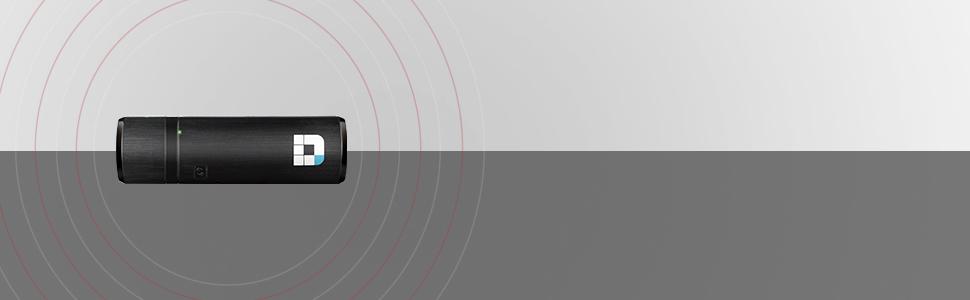
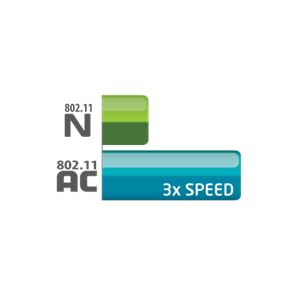
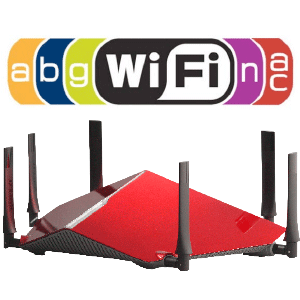
The D-Link DWA-182 is a compact, USB 3.0 wireless adapter delivering dual-band AC1300 speeds with MU-MIMO support. Compatible with Windows and Mac OS, it offers fast, reliable Wi-Fi on 2.4 GHz and 5 GHz bands, perfect for streaming, gaming, and multitasking on desktops and laptops.


| ASIN | B0099XFRIY |
| Are Batteries Included | No |
| Batteries | Product Specific batteries required. |
| Best Sellers Rank | #17,789 in Computers ( See Top 100 in Computers ) #144 in USB Computer Network Adapters |
| Brand | D-Link |
| Color | Black |
| Customer Reviews | 4.3 4.3 out of 5 stars (2,339) |
| Date First Available | 13 September 2012 |
| Item Weight | 20 g |
| Item model number | DWA-182 |
| Lithium Battery Energy Content | 2.6 Watt Hours |
| Lithium Battery Packaging | Batteries contained in equipment |
| Manufacturer | D-Link |
| Number Of Lithium Ion Cells | 4 |
| Number of USB 3.0 Ports | 1 |
| Operating System | Windows 7, Windows XP |
| Product Dimensions | 9.7 x 2.9 x 1.3 cm; 20 g |
| Series | DWA-182 |
| Voltage | 5 Volts |
| Wattage | 50 watts |
| Wireless Type | 802.11a, 802.11g, 802.11n |
J**M
Very strong signal
The best wifi 6 adapter available in the market
E**T
Working good
Very fast and easy installation
G**.
Ottimo prodotto. Facile installazione e funzionameto perfetto. Avevo una TP-LINK che si è rotta dopo un pò e funzionava anche male con frequenti interruzioni del collegamento. Questa invece funziona bene e spero duri a lungo.
B**N
Mise à niveau d'un ancien pc portable dont la carte wifi ne permettait plus de se connecter à la fibre optique en Belgique (réseau même pas détecté)... Une fois cet adaptateur Wifi installé, super débit et bonne stablité.
J**B
Was looking for a wireless adapter for my new Ubuntu build and purchased this based off of the previous reviews that indicated it worked with Ubuntu 18.04.02 LTS, which I can confirm it does. It's not exactly plug-and-play like in Windows, but it's still do-able for novices. Once you plug the adapter in, open up Software & Updates > Additional Drivers tab. In there you should see D-Link Corp.: Unknown and an option to either "Do not use the device" or "Using dkms source for the r8812au network driver from rtl8812au-dkms (open source)". Choose that open source option and click Apply Changes. It might take a few minutes, but it should go through. Note you may be prompted to enter a password for secure boot (this is called the MOK key) - go ahead and enter an easy-to-remember password (MOK key). After that, you'll need to reboot (it will most likely automatically prompt you to reboot, if not then just reboot manually). Pay attention during the reboot since you'll need to press the Enter key to enter the MOK key process (you'll see a window asking if you want to do this). I forget the exact terminology, but you want to navigate into a section where you type in that easy-to-remember password (MOK key) you just made. Once you put that password in, do whatever you need to do to gracefully get out of the MOK key area and complete the reboot process, eventually landing at the normal user log-in screen you see every time you reboot your computer. Once you log in, the adapter should work just fine. Don't miss that MOK key process since you'll need to remove and redo the driver installation process again to get back to it. IMO driver processes like this (and this is an easy one!) are one of the biggest hurdles for normal users moving into Linux-land.... Another thing to note is the drivers don't automatically load every time you start/restart your computer. To have them automatically load up every time you restart (which is likely something you'll want), is add the module name to the /etc/modules file. To find your module name, first get everything fully installed and working fine, then in a terminal window type lsmod. This will show you all of your kernel modules. Look for the name of this puppy - in my case it's 8812au (derived from the rtl8812au-dkms I previously mentioned) - and copy that text. For your next terminal command, type in sudo gedit /etc/modules - this will open a text editor and at the bottom of that file just paste in the text you copied. Save and exit gedit, restart your computer, and viola. Note that apparently my current Ubuntu build has a but where the wireless icon at the top right (near the speaker & power button) entirely disappears **sometimes** but the wireless still connects and works just fine. You can confirm everything is still working OK by going into your Settings > Wi-fi and you'll see you're still connected just fine. I am using this with my NETGEAR R8000-100NAS Nighthawk X6 AC3200 Tri-Band Gigabit Wireless Router Model R8000-100NAS and 1 gbps down / 20 mbps up internet connection. Wireless speeds about 15 feet away through one interior wall are 176 mbps down (22 MB/s down) and 23 mbps up (maxing out my upload internet speed)
A**X
Excellent capteur de wifi pour mon pc portable qui ne captait plus le wifi chez moi.
S**Z
Funciona bien, en caso que tu tarjeta wireless ya no fuencione bien o esté muy viejita es buena opción
Trustpilot
2 months ago
3 weeks ago