Desertcart purchases this item on your behalf and handles shipping, customs, and support to Italy.
🎨 Elevate your digital creativity—draw like a pro, anytime, anywhere!
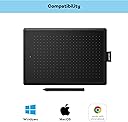
The One by Wacom Medium Pen Tablet offers a premium 8.5x5.3" active drawing surface paired with a battery-free stylus featuring 2048 pressure levels. Designed for professionals and creatives, it connects via USB-A for instant use on Windows and Mac systems. Its sleek black and red design complements any workspace, making it the perfect tool for digital drawing, photo editing, and remote collaboration.

| Active Surface Area | 45.225 square inches |
| Asin | B07HFGCP63 |
| Best Sellers Rank | 2,351 in Computers & Accessories (See Top 100 in Computers & Accessories) 4 in Graphic Tablets |
| Box Contents | Digital Pen, USB Cable |
| Brand Name | Wacom |
| Colour | black / red |
| Compatible Devices | Laptop (Chromebook) |
| Customer Reviews | 4.6 4.6 out of 5 stars (6,195) 4.6 out of 5 stars |
| Display Type | LCD |
| Eu Spare Part Availability Duration | 5 Years |
| Global Trade Identification Number | 04949268621076 |
| Item Dimensions L X W | 27.7L x 18.9W centimetres |
| Item Highlight | Drawing Tablet (PC required) for sketching, drawing and E-learning with an intuitive pen experience and Japanese Technology |
| Item Type Name | Wacom Creative Pen Tablet Medium |
| Item Weight | 15.52 Ounces |
| Manufacturer | WACOM |
| Manufacturer Part Number | CTL-672-N |
| Model Name | CTL-672-N |
| Model Number | CTL-672-N |
| Native Resolution | 1920x1080 |
| Network Connectivity Technology | USB |
| Number Of Items | 1 |
| Number Of Packs | 1 |
| Operating System | Windows 11 |
| Pressure Sensitivity | 2048 Levels |
| Product Features | distance interactive learning |
| Product Warranty | 1 year Manufacturer warranty |
| Screen Size | 75 |
| Software Update Supported To Date | unknown |
| Specific Uses For Product | Business |
| Target Audience | [SO] |
| Unit Count | 1.0 count |
User
Great hardware, but the driver needs fixing
The hardware is excellent: I can write and draw on it almost as well as I can on paper as the precision is superb, but it has the huge advantage of being able to delete each line and repeat it as many times as necessary until it's just right, so it's much more efficient. I actually wanted a device with a screen, and I'd still like to have that as a stand-alone device, but when working with the computer it isn't necessary as you can see where the pen tip is while it's in the air over the tablet, though it's a little harder to be sure which direction you need to move it in for each line to take it exactly where you need it to go because of alignment issues, though this can be fixed by rotating the tablet a little and redoing the lines that went wrong.That's where my biggest issue is with the product though, becuase when I'm sitting back with the computer (a laptop) just out of comfortable reach, I want to be able to have an undo function tied to a button on the pen instead of having to use ctrl-z on the keyboard. You can set the pen up to give you that, but it doesn't work properly due to a badly designed driver. If I set the higher button to it, it still insists on triggering the original function as well (a colour selection wheel when using Krita) which I don't want [edit: it doesn't do that if you move the pen off the drawing area, so that's a practical workaround, though it's irritating having to do that for every undo], while if I set it to the lower button, which is where I'd prefer it to be, the drawing area moves around the screen in an irritating way whenever it's pressed. It's bonkers. Maybe that doesn't happen with other apps, but it shouldn't be doing that at all. Please fix the driver, because that undo function would multiply the efficiency of using the device.Edit:-The nib was wearing away surprisingly fast, and it was clearly also eroding the tablet surface a little as it was leaving visible lines on it when pressed hard, so I did an experiment. I put a blob of UV resin glue on the end of the nib which had two effects: (1) it made the contacting part inordinately more robust, and (2) it widened the point of contact, making it still less prone to wear. Next, I cut a rectangle of card from a breakfast cereal packet (after testing the pen on various surfaces - this one felt smoother on the glossy side than paper or the non-glossy side of the card), then I put that over the tablet to protect it from the pen. The result is a much improved feel to the drawing, no damage to the tablet, and the elimination of the need to buy lots of replacement nibs. The UV resin blob shows no sign of wear at all after using it for longer than I originally used the nib without it, and it all works fine with the card showing little wear due to the roundness of the resin blob, but when it does wear out it'll be no problem replacing it. A plastic sheet is even smoother, so that might be better, and I might also try making a rectangle of non-UV resin to put on the tablet, but I'll certainly never go back to using the nibs as they come or to doing anything that erodes the tablet surface as there's no advantage whatsoever in doing either of those things.
User
Great tablet for beginners venturing into digital art!
I have wanted to get into digital art for a long time and this has been amazing! Take's a while to get used to drawing on a pad and looking at a screen but it's been so fun! Once you install the drivers and the Wacom Center, I had the pleasure of having multiple keys for free 30 day trials for drawing programs. These included; Concepts, Magma and Clip Studio Paint.I have stuck with CSP as it seems to be a a good standard with plenty of videos online to teach you.The pen is comfortable to use, the surface feels nice to draw on and I'm glad I got the medium pad as I think the next size down would have been too small for me, I have had no problems with it after using it for about two weeks!I havnt found any lag on the tablet what so ever, only when I toggle high stabilization in CSP but that's normal for it to lag behind. The tablet is very thin but feels sturdy too!
User
Confidently decent!
Purchased as a beginner. Works well enough once I'd set it up with the compainion software to bind it to only work on one of my (multi-monitor) displays.Only complaint with the actual product is it does indeed scratch very very easily. I am not heavy handed and it was already marked all over after the first day or two. A few months in though and this hasn't notably impacted functionality.Otherwise it is: Light, comfortable size + weight, comfortable pen size + weight ( I have average-large hand size with thin fingers). Drawing surface texture is decent. Simple to setup and go.As for how good it is as a beginner? I actually wish I had the money to throw at one that's also a display. It really takes some getting used to, having to not look directly at what you're drawing but rather a separate screen. It also feels really counter intuituve that it's not touchscreen, so I can't instinctively pinch and zoom and rotate with my hands.But none of those are actual issues with the product (it does what is advertised very well at an affordable price), more like buyers advice from one newbie to any others that are serious enough ( or bored enough) to be dropping money on digital art supplies.
User
Great tablet for the money
I bought this around 2 and a half years ago as I just wanted a simple and reliable tablet. I'm a graphic designer and illustrator and use this regularly in my work.After having various issues with other brands I wanted a simple tablet without all the bells and whistles - personally I find keyboard shortcuts easier to use so never end up using hotkeys on tablets etc. This model allowed me to maximize the drawing area while still keeping the tablet small and portable - it slides straight into my bag and I pretty much never notice it. To me this model is like a modern version of the bamboo line from the 2000s-2010s - its simple and just gets the job done.The pen is a classic Wacom pen and doesn't require charging like some other brands' pens which is super helpful. The tablet is accurate and responsive and pen pressure sensitivity works flawlessly in every software I've tried - including photoshop, illustrator, and blender.I use this tablet on both Mac and Windows and have never had any issues with the drivers or any other settings - just downloaded the Wacom software and it worked perfectly first try without any issues.Overall I'd recommend this tablet if you want a simple workhorse tablet without all the bells and whistles, with a low price and great portability to boot.
User
A Game-Changer for Online Maths Teaching on a Budget
Three years ago I incorporated the Wacom One medium tablet into my online maths teaching toolkit, and it has proven to be a game-changer in delivering engaging and effective lessons, all at an affordable price point of around £45. As an online maths teacher, the ability to seamlessly translate traditional pen-and-paper teaching methods to the digital realm is crucial, and the Wacom One does this with finesse.Precision and Natural Feel:The stylus pen's pressure sensitivity and precision make writing mathematical equations and symbols a breeze. In a short time I developed a neat and fluent writing style. What's even more impressive is that the stylus requires no battery, ensuring uninterrupted lessons and eliminating the hassle of frequent replacements. The device comes with extra pen nibs which I haven't used - even after three years of solid use!Dynamic Digital Whiteboard:The tablet serves as a dynamic digital whiteboard, allowing me to write, erase, and illustrate concepts in real-time during live lessons. This not only keeps students engaged but also enables me to create interactive lessons that cater to different learning styles.Interactive Demonstrations:One of the standout features is the ability to create interactive demonstrations. Whether I'm solving complex problems step by step or illustrating geometric principles, the Wacom One enhances the clarity of my explanations and makes abstract concepts more tangible for my students.Versatility in Software Integration:The tablet seamlessly integrates with various software applications commonly used in online teaching. I can easily annotate digital documents, work on interactive whiteboard platforms such as Bitpaper, and switch between different teaching tools, providing a versatile and adaptable teaching experience. Previously, I had been using a Surface Pro for teaching, but found that it heated up very quickly and slowed down performance massively; not the case with my Wacom One which operates quickly and naturally.Recording Capabilities:The Wacom One's recording capabilities, combined with platforms like Bitpaper, offer a versatile solution for teachers. The integration allows for seamless conversion of lesson notes into PDF format, providing an accessible resource for students to review at their own pace.Adoption by Students:It's worth noting that several of my students have also adopted the Wacom One medium tablet for their own studies. Clients who were initially adverse to the idea of online learning, but really wanted my services, have really taken to this device. This speaks volumes about the positive impact it has had on the learning experience, both for teachers and students.Portable and User-Friendly:The medium size strikes a perfect balance between portability and an adequate writing area. It is lightweight and easy to set up, making it a practical choice for teachers who move between different teaching environments.Affordable Price:With a budget-friendly price tag of around £45, the Wacom One medium tablet provides exceptional value for educators looking to enhance their teaching experience without breaking the bank.Conclusion:In conclusion, the Wacom One medium tablet has significantly enhanced my online maths teaching experience, offering precision, versatility, and a natural feel—all at an affordable price. The fact that the stylus requires no battery is an added bonus. The tablet's adoption by several students further reinforces its positive impact on the learning journey. I highly recommend the Wacom One to fellow educators seeking a reliable and cost-effective solution for teaching maths in the digital age.
User
Great product!
I've been using this tablet for several months with no problems. It works really well and I heartily recommend it!
User
First time time tablet user and very happy with the Wacom One
The Wacom One is my first tablet for replacing the use of a mouse and whilst it is taking some getting used to moving the pen around the whole of the board to get to the relative point on the laptop screen, i am getting the hang of it quickly and for photo editing I am already loving how much easier it is to use for detailed work compared to the use of a mouse. The mouse has been completely removed from the room so as not to tempt me to use it again.I have found the unit to be responsive and accurate in following the tasks I am setting it do. I have had an issue with a loss of connectivity on a couple of occasions and not sure if i have done something wrong or knocked the cable, but a quick reconnect of the usb and it is back to life in an instant. It has not dampened my love of it so far. The hand writing to text is very good too and it even recognises my bad hand writing!I would definitely recommend this product and at a small offer reducing the unit to £40 for this medium sized tablet, i would also say this is great value for money.
User
Be sure you know what you are buying - naming is misleading
Taken delivery of this tablet today. I'm not disappointed with it, but it's not exactly what I was expecting as Wacom's naming is confusing. That said, for the price it is a great tablet and I will hold onto it.For clarity there are 2 different tablet versions of this tablet. This one is 'One by Wacom', whereas 'Wacom One' is different and is a newer version of the tablet. I watched some online reviews and Wacom's webpage, but this distinction was not clear to me. This listing 'Wacom One by Wacom' is very ambiguous.When registering this device, it is reported as a 2017 model. It has a microUSB connector rather than USB-C, and does not have Bluetooth connectivity as the 'Wacom One' has. As it needs to be connected to the computer to use it, it does not have an internal battery. This probably means it is smaller and lighter.It would be really great if the naming was clearer, perhaps including the release dates or version numbers. Just make sure you are clear which version you are ordering if Bluetooth or USB-C is important to you.
User
La Tableta Gráfica Mediana por excelencia
QUÉ DEBEMOS SABER SOBRE LA TABLETA GRÁFICA ONE BY WACOMOne by Wacom es una tableta básica y minimalista. Es el modelo de Wacom específicamente pensado para principiantes o para personas que no se dedican profesionalmente a la ilustración.Esto no quiere decir que no puedas hacer dibujos muy avanzados con ella. La diferencia es que no está equipada como otras tabletas con características útiles para pasar muchas horas dibujando cada día, ni para detectar todas las posibles sutilezas de los trazos con el lápiz.Si es tu primera tableta gráfica y no estás seguro de si te vas a sentir cómodo con el dibujo digital, empezar con una opción económica, como ésta, es una buena idea.Durante años Wacom ha sido la marca principal y referente en este sector. Aunque esto no sea un factor determinante, es algo a valorar, por toda su experiencia desarrollando estos dispositivos y teniendo que satisfacer las necesidades de sus clientes.Además, esta tableta es una de las más vendidas, lo cual es una ventaja porque cuenta con muchas opiniones para ayudarte a decidir, y de cara a encontrar soporte en internet ante cualquier problema que te puedas encontrar, como por ejemplo problemas de compatibilidad con programas.Por todos estos motivos, la Wacom One by Wacom será la primera recomendación de nuestro chatbot Revie dentro de las tabletas sin pantalla, de tamaño mediano y con funcionalidades básicas, es decir, tabletas económicas.QUÉ INCLUYE LA TABLETA ONE BY WACOMOne by Wacom viene equipada con lo necesario:El lápiz, que no necesita ser recargado.Tres recambios para la punta del lápiz, junto con una pequeña herramienta para colocarlas y extraerlas.El cable micro USB con el que lo conectaremos en el ordenador (uno de los típicos para móviles).Una brevísima guía con algunas explicaciones que necesitamos saber.Los recambios de punta son necesarios porque del continuo roce con la superficie de la tableta irá desgastándose y afilándose, pudiendo dañarla.Además, la tableta gráfica tiene un pequeño agarre de tela donde podemos colocar el lápiz mientras no lo usemos.¿QUÉ FUNCIONALIDADES UN POCO MÁS AVANZADAS PODRÍA ECHAR DE MENOS ALGUIEN CON EXPERIENCIA?El estándar actual de niveles de detección de presión ronda los 8192, mientras que el lápiz de nuestra tableta tiene 2048. Esto quiere decir que podría ser más sensible a la fuerza que aplicas sobre la tableta. En la mayoría de casos esta diferencia es inapreciable y se suele considerar que 2048 es más que suficiente.No detecta el grado de inclinación en los trazos, lo cual se utiliza para que se asemeje más al dibujo en papel y para tener más variables que manejar dibujando. En general las tabletas gráficas básicas no incluyen esta funcionalidad.No tiene botones. Los programas de edición de imagen cuentan con atajos de teclado para facilitar y agilizar el proceso: deshacer, hacer zoom, cambiar de herramienta… Las tabletas con botones permiten asignarle estos atajos para trabajar de forma más eficiente con dos manos.CÓMO INSTALAR ONE BY WACOMSi leemos la mini-guía veremos el enlace al que tenemos que acceder para descargar el software de esta tableta: wacom.com/start/one. Nosotros recomendamos hacer esto primero, y no conectar la tableta hasta que reiniciemos el computador tras completar la instalación.En nuestro caso hemos tenido algún problema por no realizar los pasos en ese orden. También mencionar que con Photoshop funcionó en el acto, mientras que con el software libre GIMP tuvimos problemas para que reconociera la tableta.Para los que nunca hayáis utilizado una tableta gráfica, la tableta funciona como un ratón cuando el lápiz está cerca de la tableta, y cuando entras en contacto es como hacer clic. La importancia de que la tableta se detecte correctamente radica en que los programas de edición de imagen reciban la información de la fuerza del trazo.Desde el software que nos facilitan, seleccionando nuestro producto y los ajustes del lápiz, podemos configurar lo que necesitemos. Lo más importante es asignarle a los botones del lápiz las acciones que queramos: ya sea un clic de ratón, un comando de teclado como control z, etc.También, dentro de la pestaña de “Proyección”, podemos elegir sobre qué pantalla actuará la tableta en el caso de tener más de un monitor, además de elegir si vamos a utilizar la tableta en vertical u horizontal. En mi caso, el ordenador lo tengo a la derecha por lo que me interesa más hacer clic en “horizontal invertido”.Para los más nuevos, recordar que la zona de puntos es la superficie realmente efectiva, que se va a corresponder con el monitor. Cada punto de la esquina encaja con las esquinas del monitor. Fuera de este área no se va a detectar el lápiz.Es importante mencionar que utilizando conexiones de USB 2.0 no se siente ninguna latencia o retraso entre que presionamos con el lápiz hasta que aparece el trazo dibujado.OPINIÓN FINAL ONE BY WACOMOne by Wacom, como puedes comprobar en nuestro chatbot, es nuestra recomendación principal si buscas algo básico y económico, especialmente si no necesitas que tenga pantalla ni que sea de los modelos más grandes.El software que te facilitan en Wacom es muy fácil de usar y te permite configurar tu tableta según tus necesidades.Cumple perfectamente con las funciones que esperas de una tableta gráfica a muy buen precio y sin complicaciones.
User
Excellente tablette pour dessiner ou prendre des notes
J’ai acheté cette tablette graphique Wacom pour l’utiliser avec mon MacBook Pro, et tout fonctionne parfaitement. La configuration est simple et rapide : le branchement en USB suffit, et la tablette est reconnue immédiatement. Aucun souci de compatibilité avec macOS, que ce soit sur Krita, Photoshop ou d'autres logiciels.La réactivité est très bonne, le stylet est précis, et la sensibilité à la pression fonctionne bien. J’utilise la taille medium, qui offre une bonne surface de travail sans prendre trop de place sur le bureau. Pour du dessin numérique ou de la prise de notes, c’est vraiment pratique.Le produit est léger, facile à transporter, et le fait qu’il soit filaire ne me gêne pas du tout. C’est une excellente tablette pour débuter ou pour une utilisation régulière, sans se ruiner. Franchement, à ce prix, je ne vois pas mieux en termes de qualité et de simplicité.
User
ممتاز يؤدي الغرض منه بامتياز
بعد سنين كتير اشتغلت بإصدارات تانية فيها أزرار وبلوتوث و.. ، فده بالنسبة لي ممتاز في إنه بيؤدي الغرض المطلوب منه بالظبط لا أكتر ولا أقلوطبعا جودة ويكم معروفة
User
Leider kein USB-C, sonnst Top!
Der erste Eindruck ist toll. Das Pad wirkt stabil, der Stift liegt gut in der Hand und gleitet leicht über die Oberfläche.Die Treiber funktionieren sowohl auf MacOS als auch auf Windows gut.Leider hat das Pad aber einen MicroUSB Anschluss anstatt Typ-C…Für 60€ im großen und Ganzen ein solides Produkt.
User
Bon rapport qualité/prix
Bon rapport qualité/prix. A recommander.
Trustpilot
1 month ago
3 days ago