Buy anything from 5,000+ international stores. One checkout price. No surprise fees. Join 2M+ shoppers on Desertcart.
Desertcart purchases this item on your behalf and handles shipping, customs, and support to Italy.
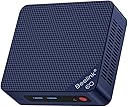
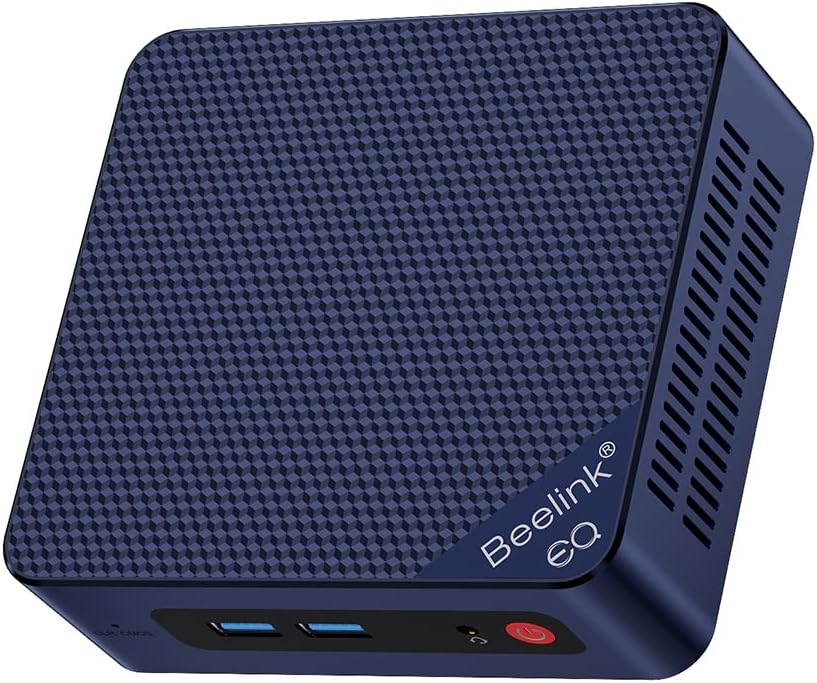
🚀 Elevate Your Workspace with Beelink Mini PC!
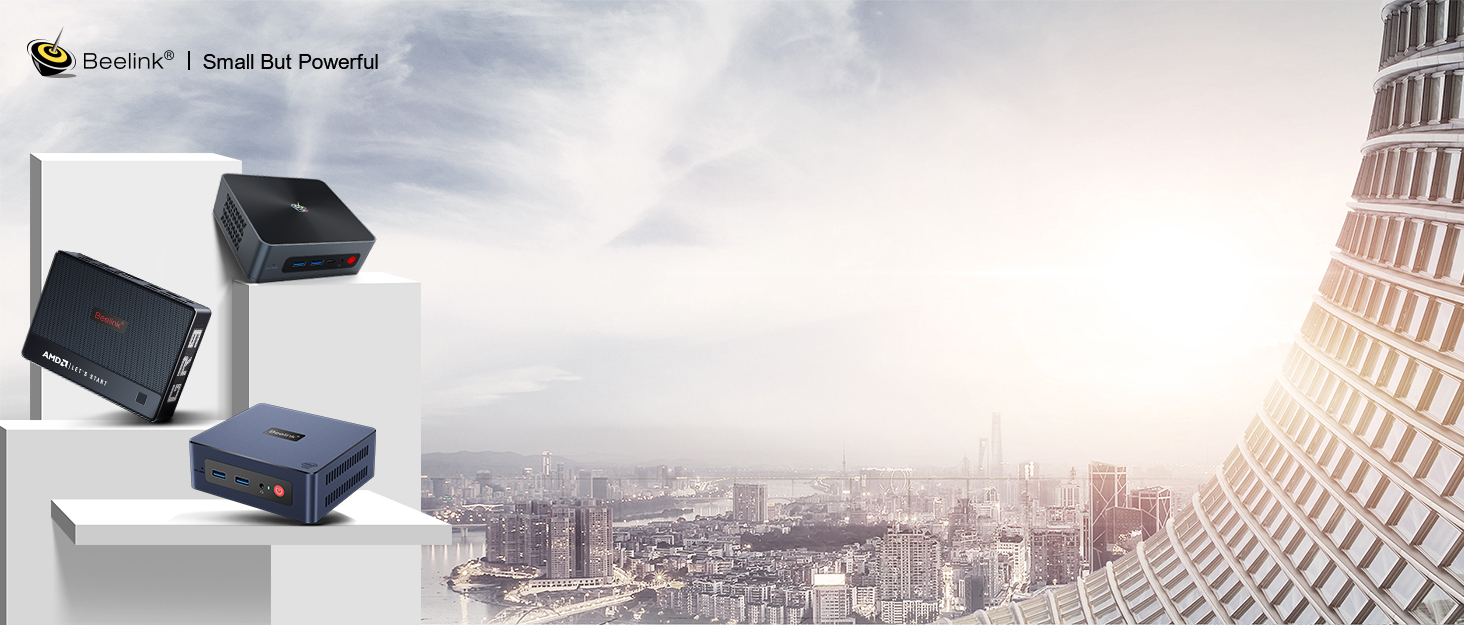
The Beelink Mini PC EQ12 is a compact yet powerful desktop solution featuring an Intel 12th Gen N100 processor, 8GB DDR5 RAM, and a 500GB SSD. With triple display capabilities, dual HDMI outputs, and a variety of connectivity options, it’s designed for seamless multitasking and efficient performance in any professional setting.


| ASIN | B09DPR1TMR |
| Additional Features | office,business,home entertainment,Online courses,supermarket,industrial CNC,Billboard,Plex server |
| Aspect Ratio | 16:9 |
| Best Sellers Rank | #1,248 in Computers & Accessories ( See Top 100 in Computers & Accessories ) #29 in Mini Computers |
| Brand | Beelink |
| Built-In Media | 1 x HDMI Cable, 1 x Mini PC, 1 x Power Adapter, 1 x User Manual |
| CPU Model Number | Intel Celeron N150 |
| CPU Model Speed Maximum | 3.4 GHz |
| Color | Blue |
| Compatible Devices | Keyboards, Mice, Televisions, Speakers, Headphones, Monitors, Printers, Smartphones, Projectors |
| Connectivity Technology | 802.11a/b/g/n/ac, 802.11ax, Bluetooth |
| Cooling Method | Fan |
| Customer Reviews | 4.2 4.2 out of 5 stars (93) |
| Display Resolution Maximum | 3840 x 2160@60Hz |
| Display Type | 4K UHD |
| Graphics Card Interface | Integrated |
| Graphics Coprocessor | Intel UHD Graphics |
| Graphics Description | Integrated |
| Graphics Ram Type | DDR SDRAM |
| Hard Disk Description | SSD |
| Hard Disk Interface | Serial ATA |
| Hardware Interface | Ethernet, HDMI, SATA 3.0 Gb/s, USB 3.0, USB Type C |
| Human-Interface Input | Buttons, Keyboard, Mouse |
| Item Dimensions | 4.52 x 4.1 x 1.7 inches |
| Keyboard Layout | QWERTY |
| Manufacturer | Shenzhen AZW Technology Co.,Ltd. |
| Memory Slots Available | 1 |
| Model Name | MINIS(MINI S,MINIS Pro,MINI G,MINI X) |
| Model Number | MINIS(MINI S,MINIS Pro,MINI G,MINI X) |
| Model Year | 2026 |
| Native Resolution | 3840 x 2160 |
| Number of Component Outputs | 2 |
| Operating System | OS |
| Optical Storage Device | 500 Gb |
| Personal Computer Design Type | Mini PC |
| Power Plug Type | Type B - 3 pin (North American) |
| Processor Brand | Intel |
| Processor Count | 4 |
| Processor Series | Celeron |
| Processor Socket | LGA 1700 |
| Processor Speed | 3.4 GHz |
| RAM Memory Installed | 16 GB |
| RAM Memory Technology | DDR4 |
| RAM Type | DDR4 SDRAM |
| Ram Memory Maximum Size | 16 GB |
| Resolution | 3840x2160 Pixels |
| Specific Uses For Product | Business |
| Style Name | office,business,home entertainment,Online courses,supermarket,industrial CNC,Billboard,Plex server |
| Total Number of HDMI Ports | 2 |
| Total Usb Ports | 4 |
| Video Output | HDMI, Type-C |
| Video Output Interface | HDMI, Type-C |
| Video Processor | Intel |
| Warranty Description | 3 Year Warranty |
| Wireless Compability | 2.4 GHz Radio Frequency |
| Wireless Network Technology | Wi-Fi |
| Wireless Technology | Bluetooth 802.11a/b/g/n/ac, 5 GHz Radio Frequency, 2.4 GHz Radio Frequency |
S**D
Windows automatic repair stuck and it is on loop 😖
Automatic Repair Loop and Incorrect Password when Trying to Access Anything in Advanced Options.I have been using this for very few time for over a year, and I have experienced an issue that many people also had too. I was updating some of my drivers from a third-party software that was reliable and restarted my system like usual when it began to send me into an automatic repair loop. I kept restarting it several times to see whether it will change anything and nothing. I tried to go through “Advanced Options” to see whether I could try to go to “Command Prompt” or some of the other options to get around the issue. Every time that I click on these options, it prompts to a message that I need to type in the password for my account to access the option. Essentially, I would always get an incorrect password error every time I typed my password in. I know that I typed the password correctly because I had my password saved in a password manager, looked at the password several times, and the keyboard layout was “US”. I even changed my password for my account and signed in into the Microsoft website with the new password and typed it all correctly. However, when I tried to type in the new password on my laptop, it gave me the incorrect password message again. I restarted once more and got the same results. There’s no way that I kept typing it incorrectly because I looked at it several times and even checked to make sure “caps lock” isn’t on and also “num lock”. Nothing changed from there. I looked on YouTube to find solutions and go through BIOS or whatever to diagnose the issue and either nothing came up, or it failed to detect the issue. I had essentially tried everything and there was an option for “Startup Setting” where I could try to disable something to see whether that was the problem. That option initially wouldn’t require me to use my password to sign in because I had to restart my device to disable a setting, but it would always send me to a black screen for essentially hours. Nothing happened and I had to physically hold down the power button to force shut down the thing again. I really need to find out what could possibly be the issue here.
M**F
Too slow and outdated
Only 4gb ram and 64gb
M**U
Excelente computadora
Muy buena, computadora, muy rápida y súper ahorradora de espacio ya que es muy compacta
A**S
Gostei do computador
Show de bola, recomendo para atividades básicas e intermediárias.
L**Z
Mini PC aceptable
Era justo lo que meditaba el trabajo de oficina
S**
It ISN’T Windows 11.
It seems much faster than my old tower, but I’m very disappointed that it isn’t as advertised (with Windows 11 installed) I’m having some issues getting 11 installed.
S**
For simple browsing
It's nice and less place required product. It's fast.
Trustpilot
2 weeks ago
1 month ago